
Change Color of Image Online Instantly
Change color of image online instantly with our free image color replacement tool.
Upload a PNG, JPG, or SVG image, choose the color you want to replace, and download the updated image in seconds.
Our online image color changer works directly in your browser with no software installation, no signup, and no watermark.
Why Use Our Image Color Changer?
- Replace any color in an image instantly
- Supports PNG, JPG, and SVG image formats
- Smart color detection with adjustable tolerance
- No Photoshop or design skills required
- 100% free tool with no signup required
- Download high-quality recolored images instantly
How to Change the Color of an Image

1
Upload Your Image
Upload your image by dragging and dropping it into the tool or by clicking the upload button.
Our tool supports PNG, JPG, and SVG images and works directly in your browser without uploading files to external servers.

2
Select the Color
Use the color picker to select the color in the image that you want to change.
The tool automatically detects similar shades and applies smart color replacement so the new color blends naturally with the image.

3
Download Result
Preview the recolored image instantly and adjust the replacement color if needed.
Once you’re satisfied with the result, download the updated image in high quality with a single click.
Powerful Online Image Color Replacement Tool

Precise Color Replacement

Works with Transparent PNG
SVG Color Editing
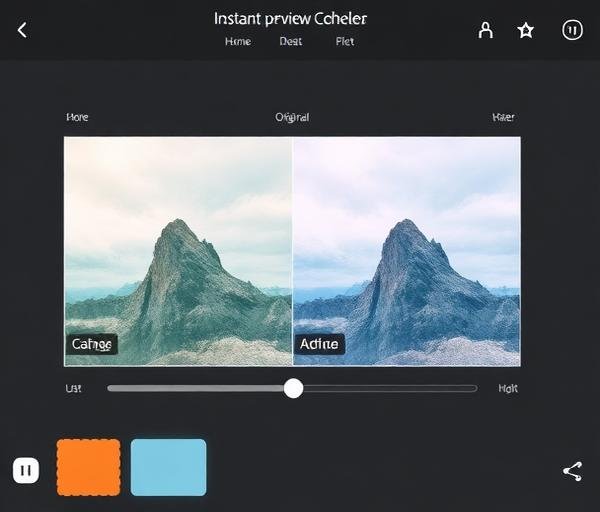
Instant Preview
Change the Color of Any Image Online
What Is Image Color Replacement?
Image color replacement is the process of identifying a specific color within an image and replacing it with another color.
This technique is commonly used in graphic design, branding, product photography, and digital content creation.
Instead of manually editing pixels in complex software like Photoshop or GIMP, online tools automate the process so users can change colors in seconds.
With an online image color changer, you can recolor logos, icons, product images, and illustrations directly in your browser.
Why Designers Change Colors in Images
Designers frequently need to change colors in images for a variety of reasons. Brand consistency is one of the most common — when a company updates its brand colors, every logo, icon, and marketing asset needs to reflect the change. Product teams use color replacement to create multiple color variations of a single product image for e-commerce listings, saving time and reducing photography costs. Designers also change colors to test visual concepts, create mockups, adapt assets for different campaigns, or ensure accessibility by improving contrast ratios. Color replacement is an essential skill in any designer’s workflow.
How Color Replacement Works
Color replacement works by analyzing the pixel data of an image and identifying pixels that match a target color. The tool uses a tolerance or threshold setting to determine how closely a pixel must match the target color to be included in the replacement. This allows the tool to handle gradients, shadows, and anti-aliased edges gracefully. For raster images like PNG and JPG, the replacement happens at the pixel level. For vector formats like SVG, the tool can directly modify fill and stroke color values in the markup, providing perfectly clean results. Advanced tools also support hue shifting, which preserves the tonal variations of the original color while changing its overall hue.
Benefits of Online Color Editing Tools
Online color editing tools offer several advantages over traditional desktop software. First, they require no installation — everything runs in your browser. This makes them accessible from any device, including tablets and Chromebooks. Second, they’re designed for simplicity, with intuitive interfaces that don’t require design expertise. Third, most online tools are free to use, making professional-quality color editing accessible to everyone. They also tend to produce results instantly, allowing for rapid iteration and experimentation. For teams, online tools enable easy collaboration and sharing without the need for expensive software licenses.
Change PNG, JPG, and SVG Colors Easily
Each image format has its own characteristics when it comes to color replacement. PNG files are ideal for graphics with transparency — you can change the color of a logo or icon while preserving its transparent background. JPG files are best for photographs, though color replacement in photos requires more careful tolerance settings due to the wide range of tones and gradients. SVG files offer the cleanest results because they use mathematical descriptions of shapes rather than pixels, allowing for exact color value changes without any quality loss. Our tool handles all three formats seamlessly, detecting the file type automatically and applying the optimal color replacement algorithm for each. Whether you’re working with a simple icon or a complex product photo, you’ll get professional results every time.
Frequently Asked Questions
How can I change the color of an image online?
Simply upload your image to our free tool, use the color picker to select the color you want to change, choose a new replacement color, and download the result. The entire process takes just seconds and works right in your browser.
Can I replace a specific color in an image?
Yes. Our tool allows you to select a specific color within the image and replace it with another color.
The color picker helps detect the target color, and the tolerance setting ensures similar shades are replaced accurately.
Does this tool work with PNG images?
Yes. The tool fully supports PNG images, including images with transparent backgrounds.
You can change the color of logos, icons, or graphics while preserving transparency.
Can I change SVG colors online?
Yes. SVG files can be edited directly by replacing fill and stroke color values.
This allows precise color changes without losing image quality.
Is this image color changer free?
Yes. The tool is completely free to use with no signup required.
Simply upload your image, replace the color, and download the result.
Will image quality be reduced?
No. The tool preserves the original image quality.
PNG and JPG images are processed carefully to maintain details, while SVG files retain perfect vector quality.